
CELPIP Speaking Task 3 practice questions — Describing a Scene
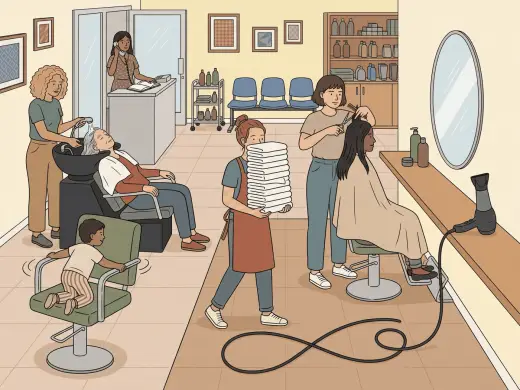
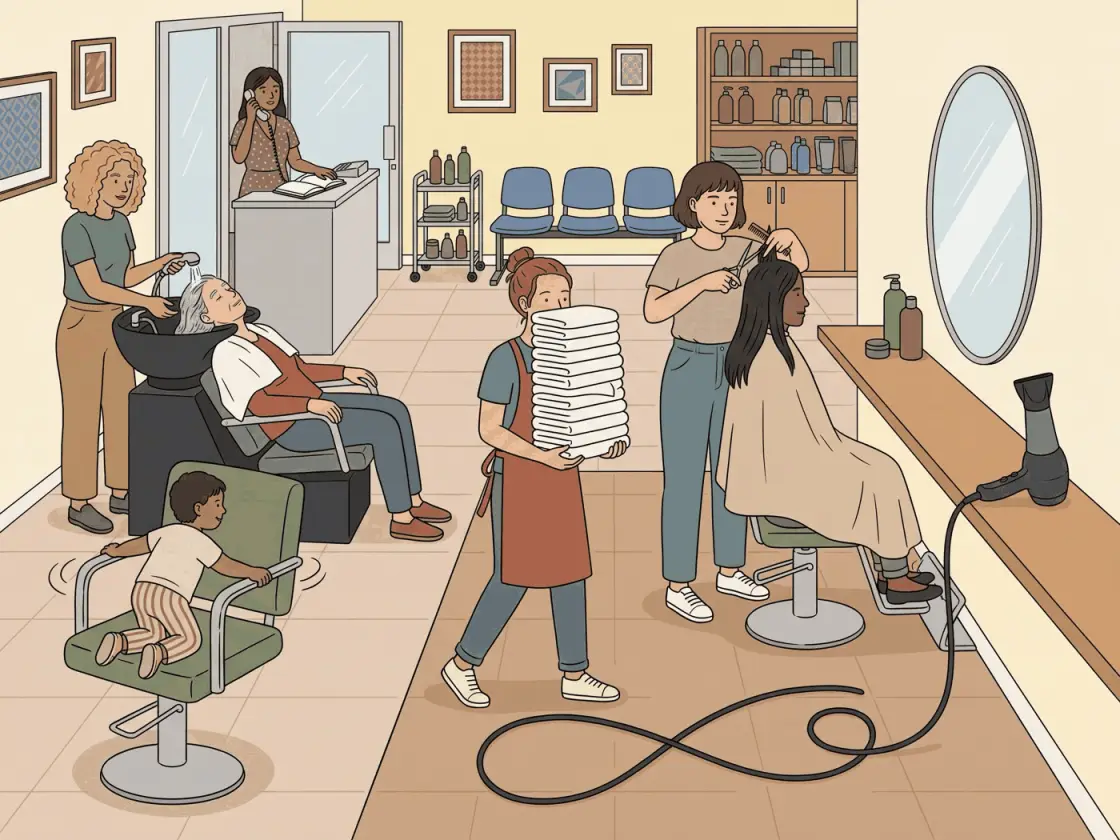
Task 3 shows a picture to somebody who cannot see it. Every scene the app can set you is below, picture and all, each one carrying the written description a screen reader gets.
- 30 seconds to prepare, 60 seconds to speak. No pausing, no second take.
- Describe what is there, then what is happening.
- The listener is blind to the picture. Say where things are.
The prompts
All 24 of them, the same pool the app draws from.
1 Describe what is happening in the picture below. The person you are speaking to cannot see it, so describe as much as you can.
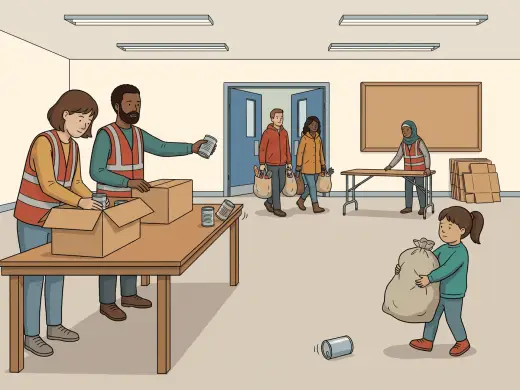
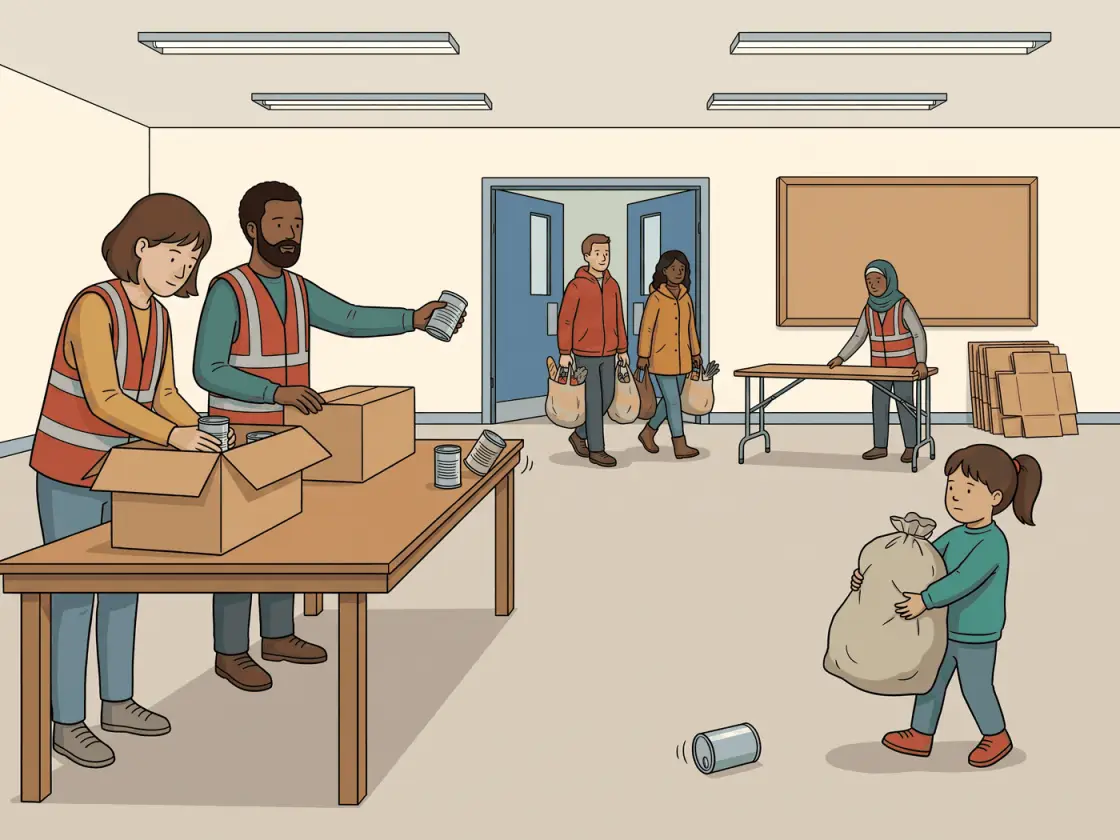
2 Describe what is happening in the picture below. The person you are speaking to cannot see it, so describe as much as you can.
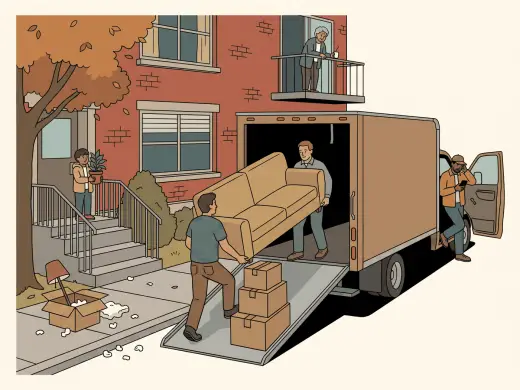
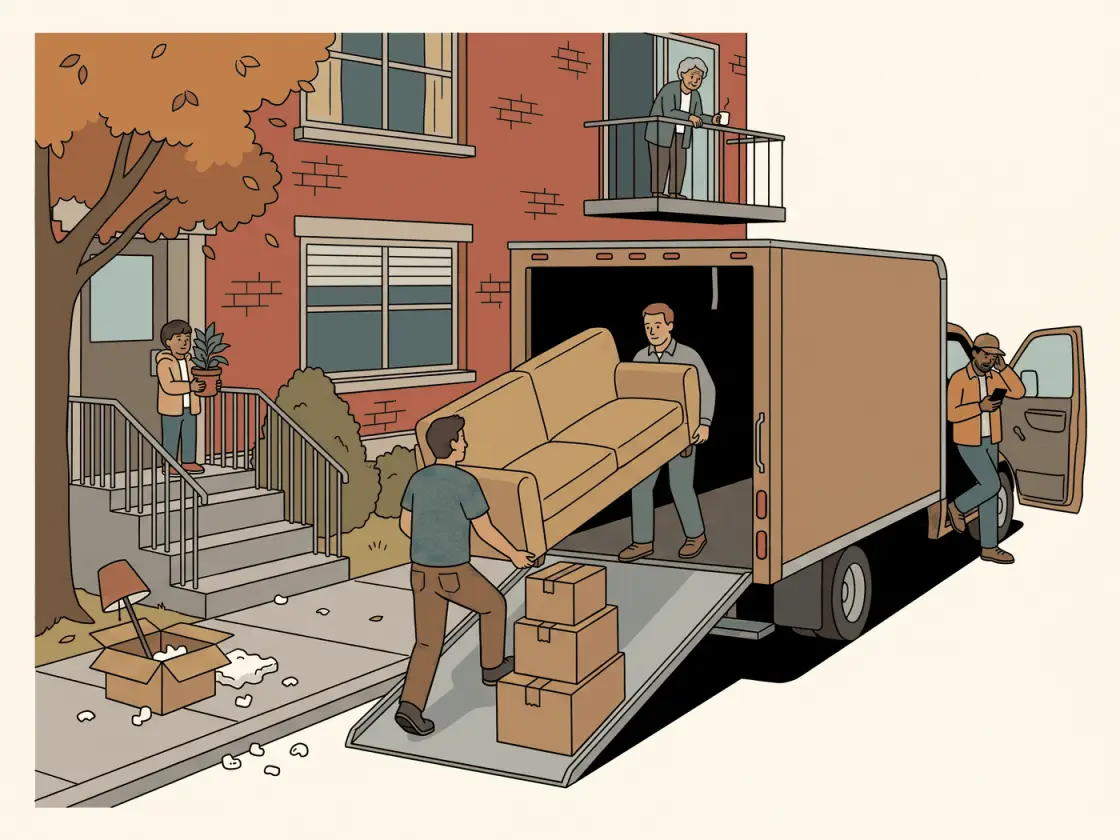
3 Describe what is happening in the picture below. Give as many details as you can for a listener who cannot see it.
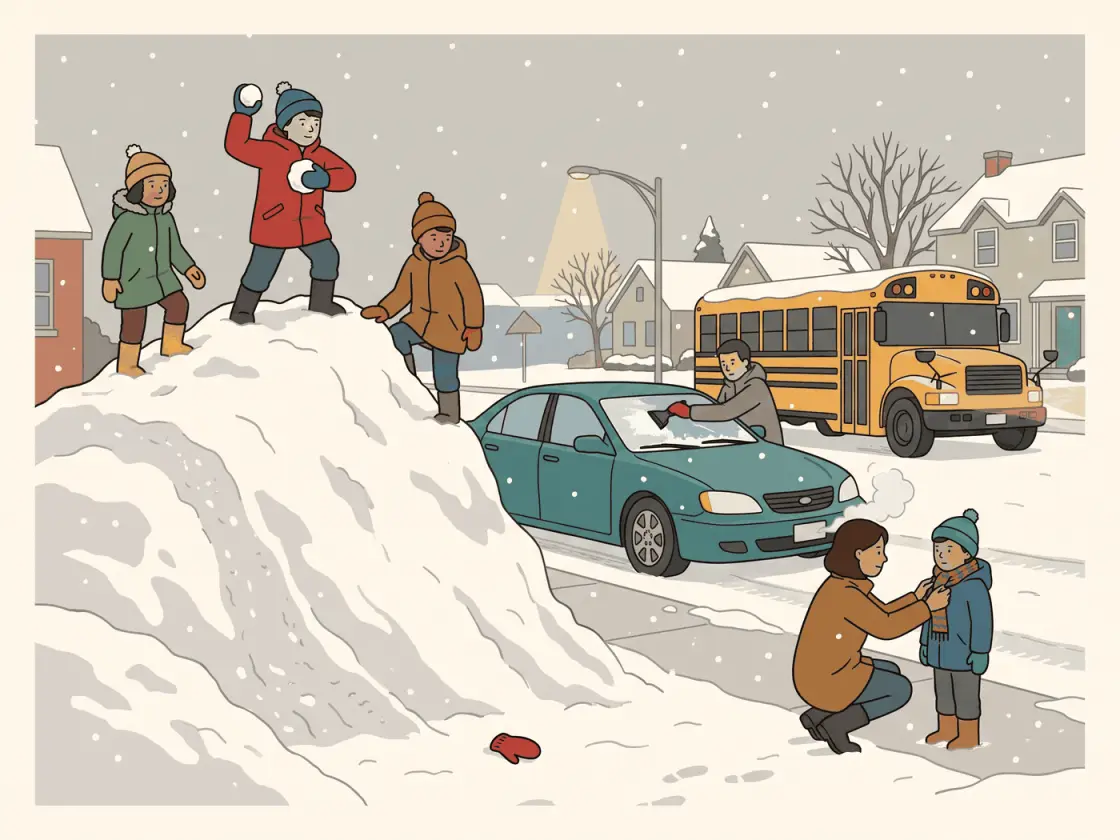
4 Describe what is happening in the picture below. The person you are speaking to cannot see it, so describe as much as you can.
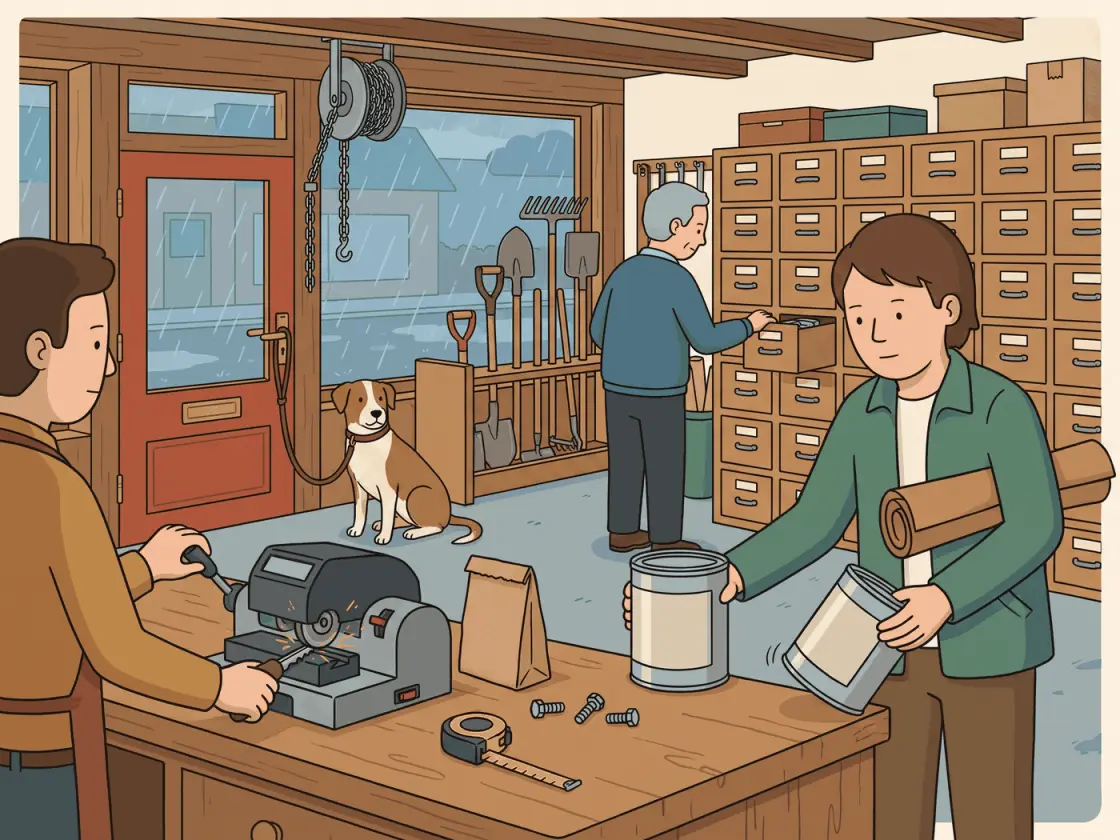
5 Describe what is happening in the picture below. Give as many details as you can for a listener who cannot see it.
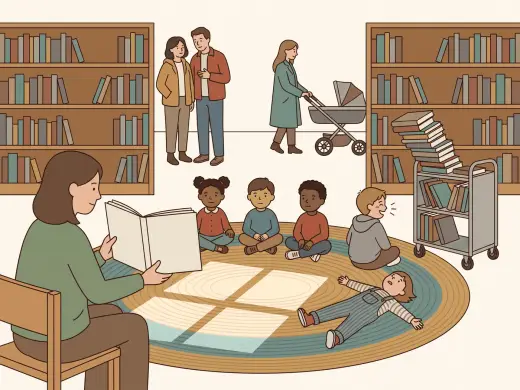
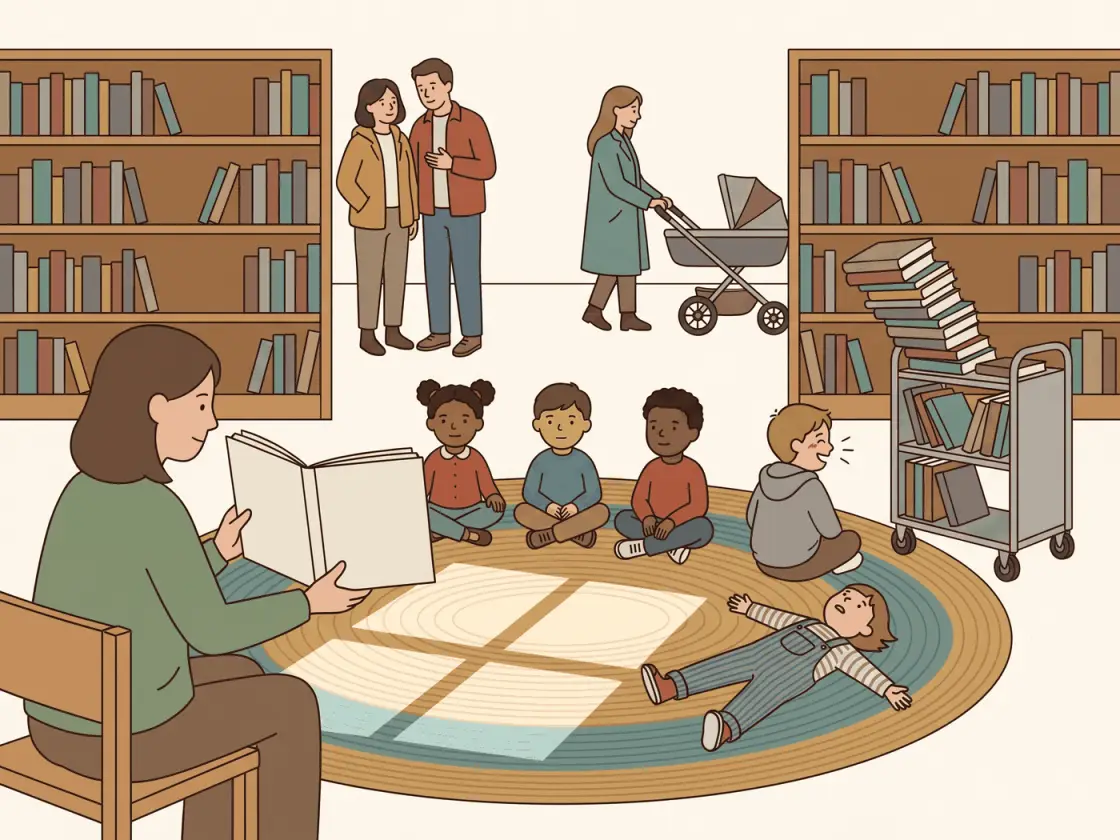
6 Describe what is happening in the picture below. The person you are speaking to cannot see it, so describe as much as you can.
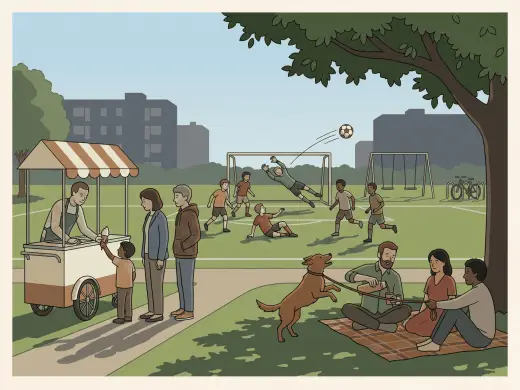
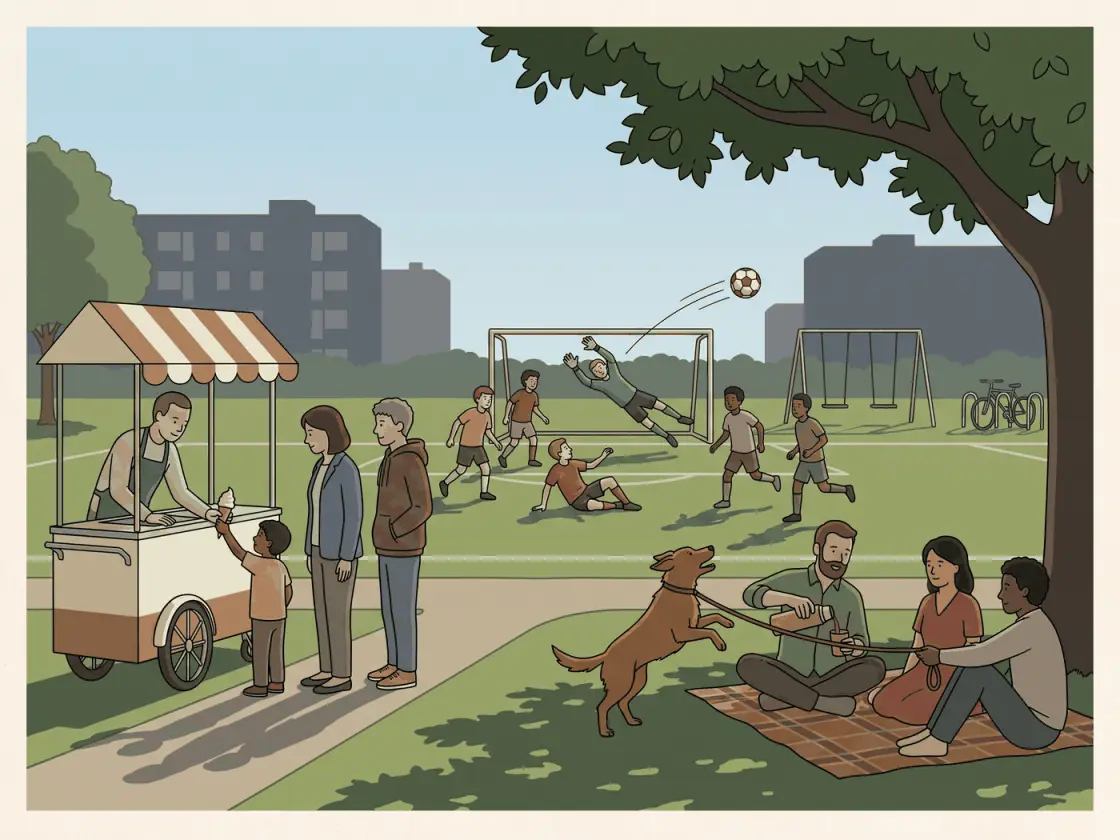
7 Describe what is happening in the picture below. The person you are speaking to cannot see it, so describe as much as you can.


8 Describe what is happening in the picture below. Give as many details as you can for a listener who cannot see it.

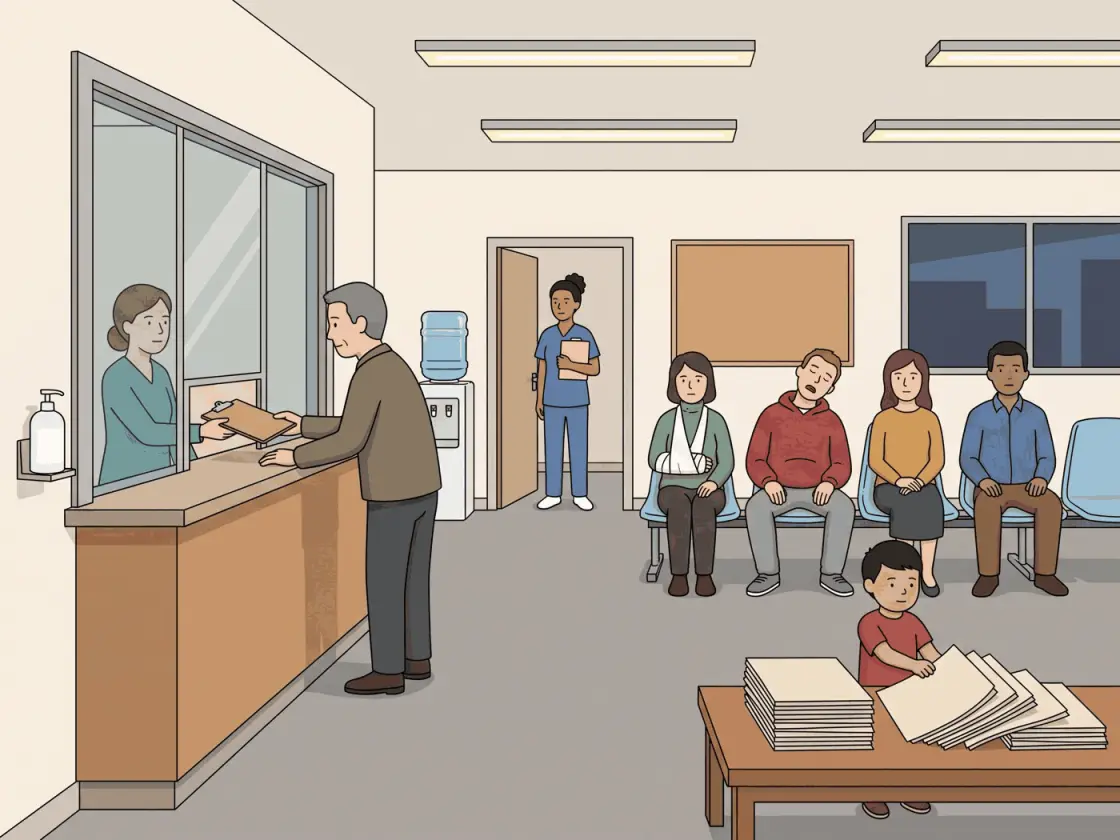
9 Describe what is happening in the picture below. The person you are speaking to cannot see it, so describe as much as you can.


10 Describe what is happening in the picture below. Give as many details as you can for a listener who cannot see it.
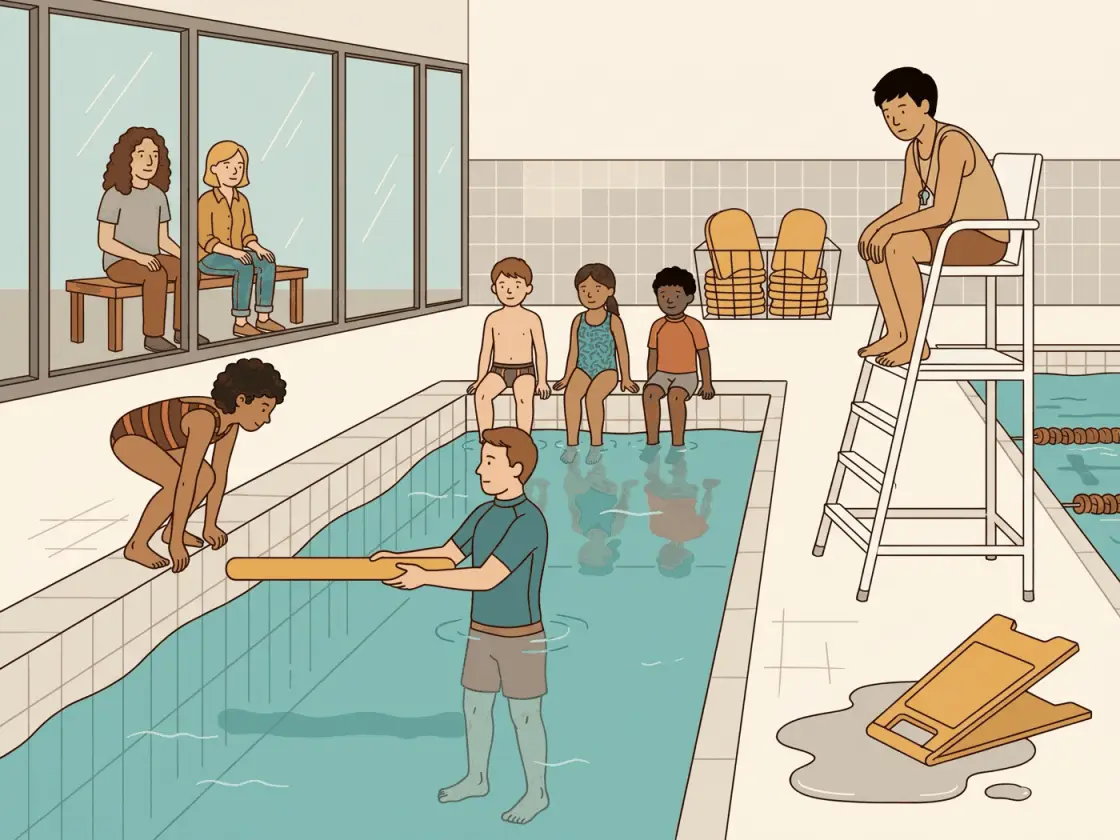
11 Describe what is happening in the picture below. The person you are speaking to cannot see it, so describe as much as you can.
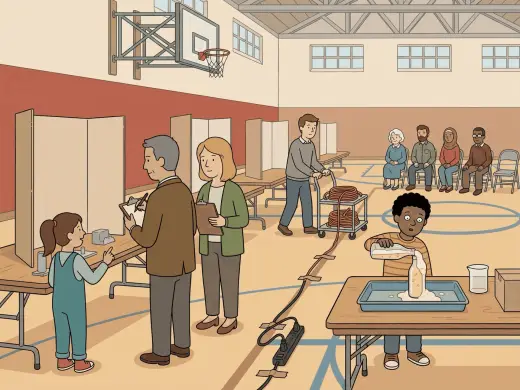
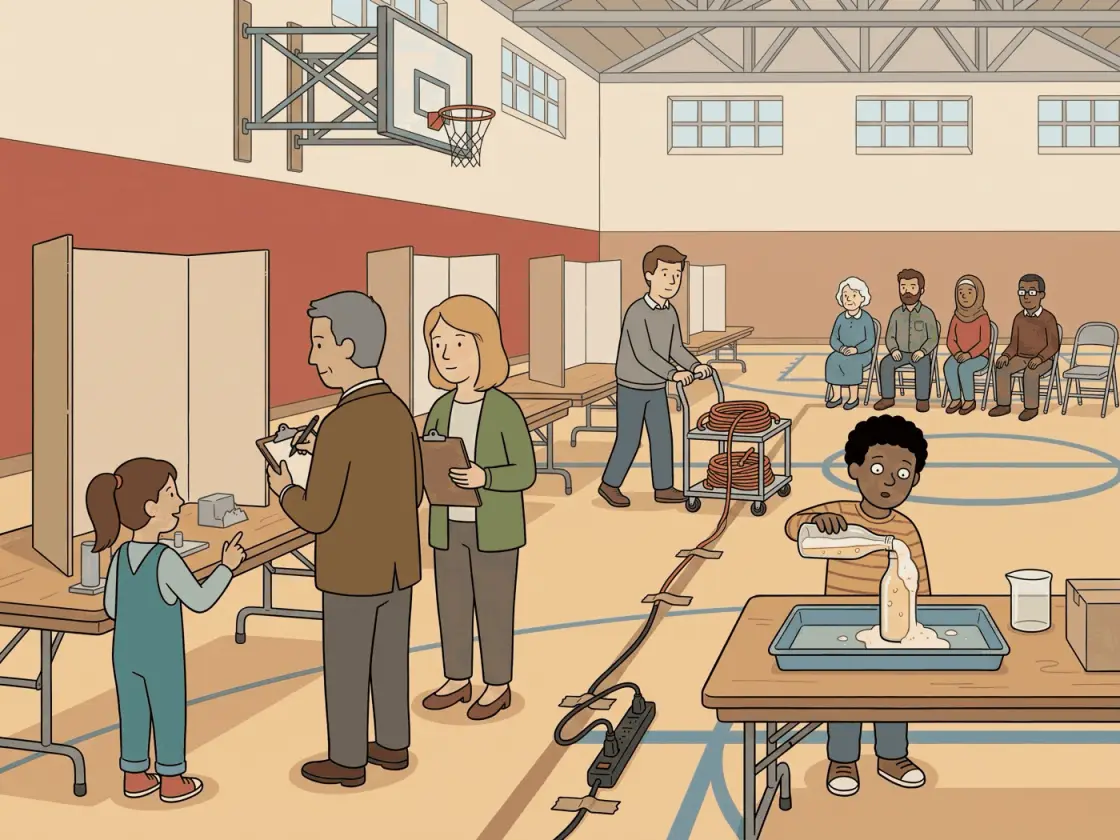
12 Describe what is happening in the picture below. Give as many details as you can for a listener who cannot see it.
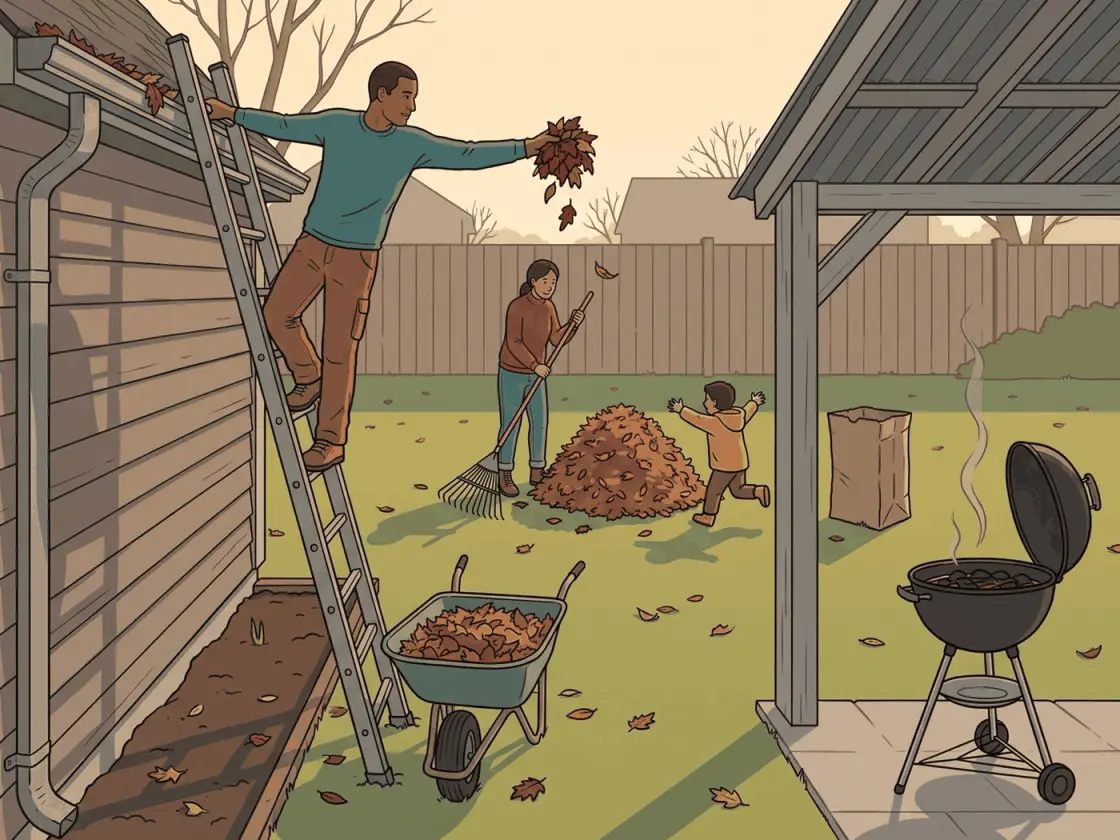
13 Describe what is happening in the picture below. The person you are speaking to cannot see it, so describe as much as you can.
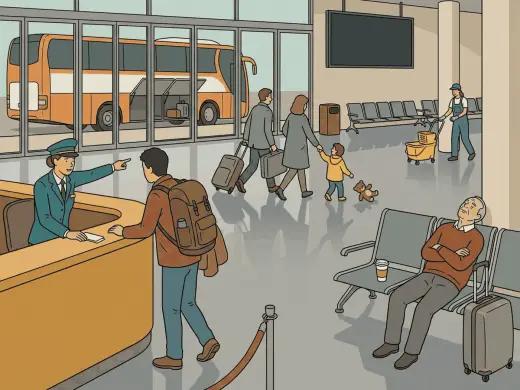
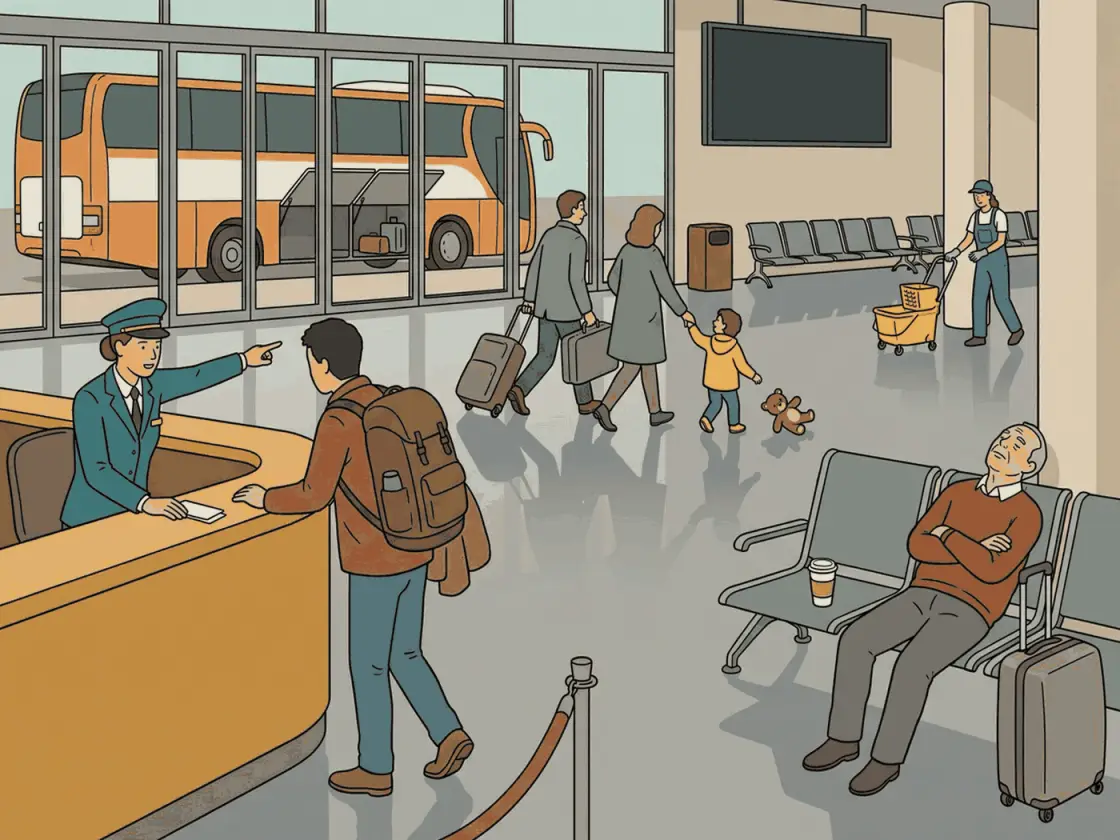
14 Describe what is happening in the picture below. Give as many details as you can for a listener who cannot see it.

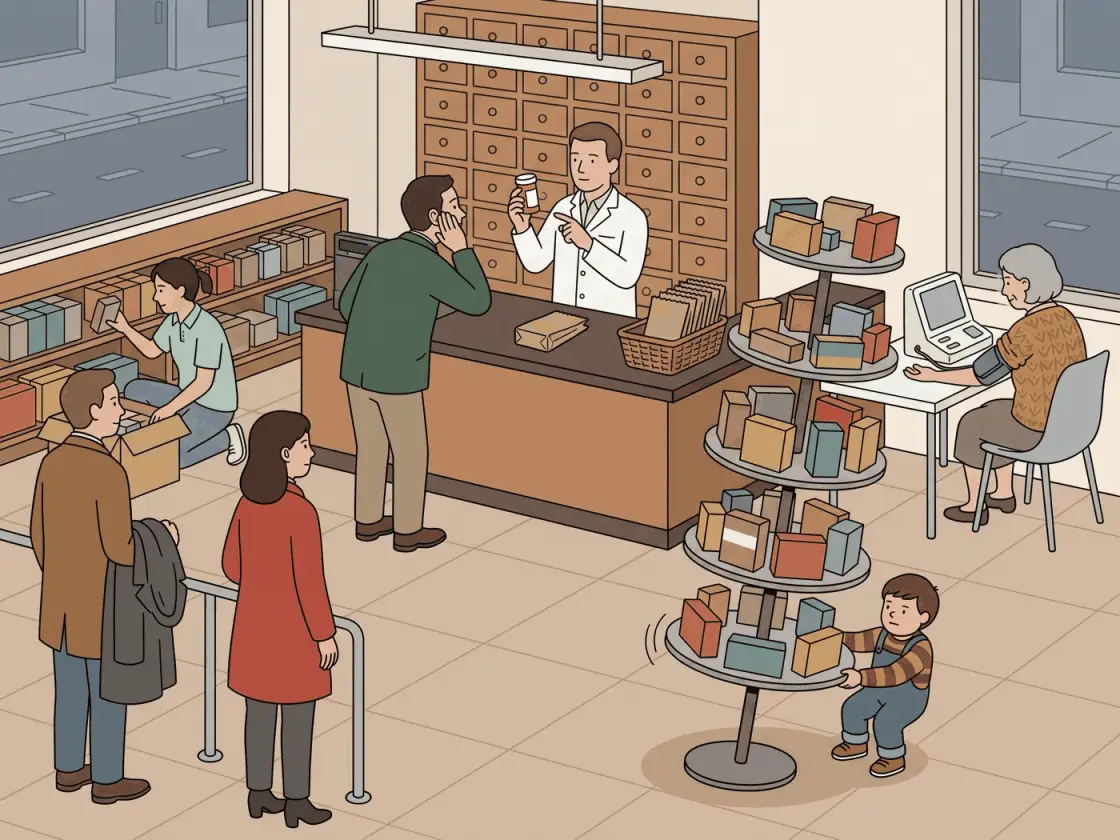
15 Describe what is happening in the picture below. The person you are speaking to cannot see it, so describe as much as you can.


16 Describe what is happening in the picture below. Give as many details as you can for a listener who cannot see it.
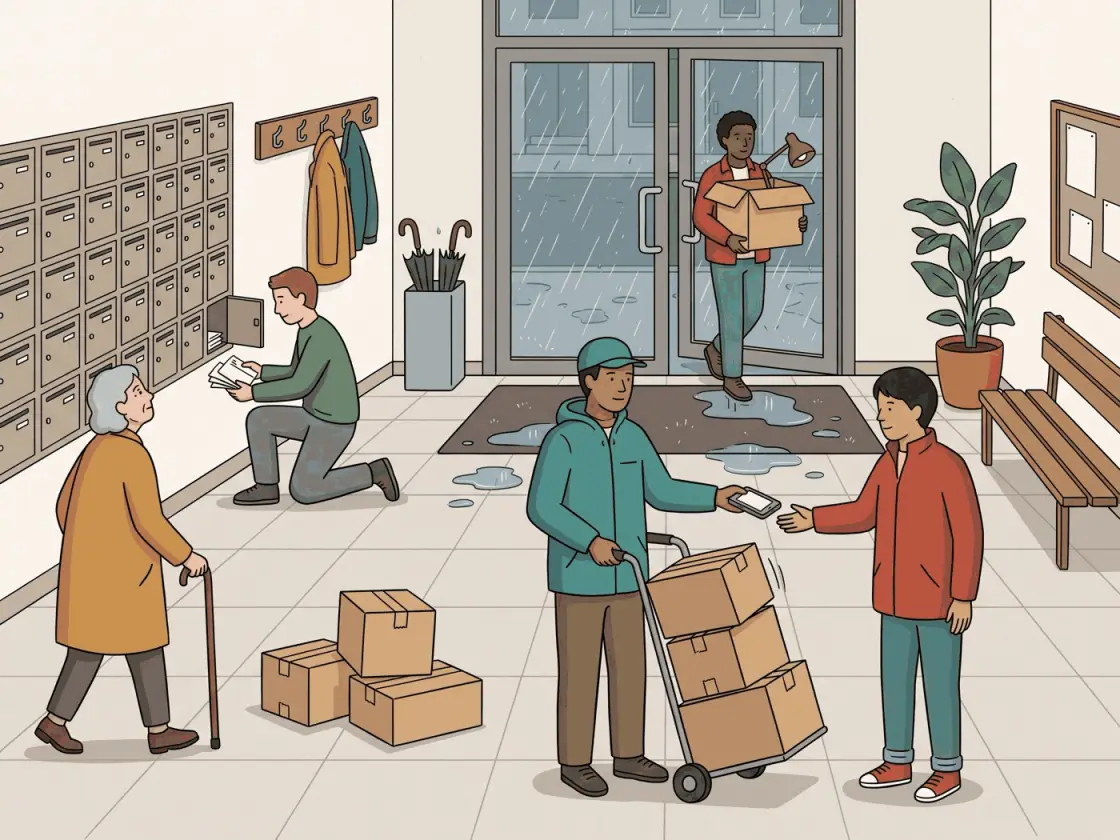
17 Describe what is happening in the picture below. The person you are speaking to cannot see it, so describe as much as you can.
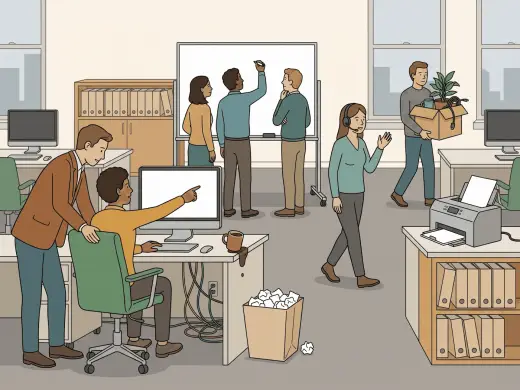
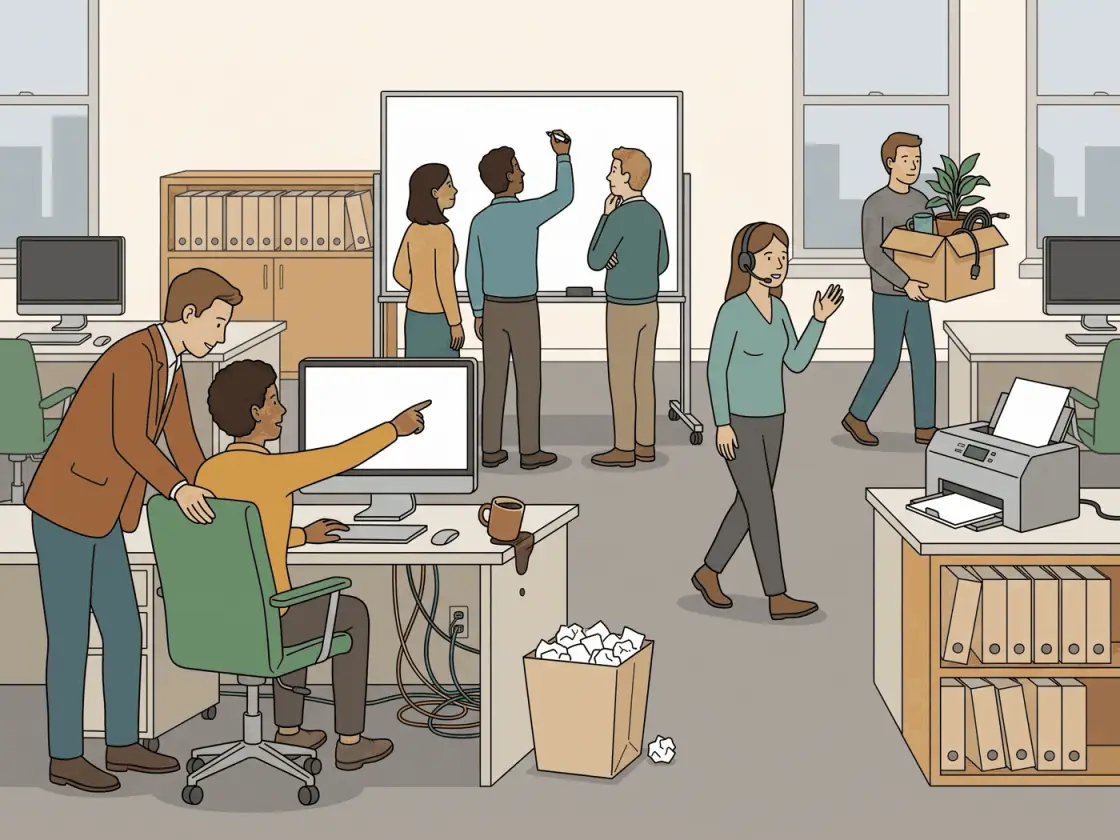
18 Describe what is happening in the picture below. Give as many details as you can for a listener who cannot see it.
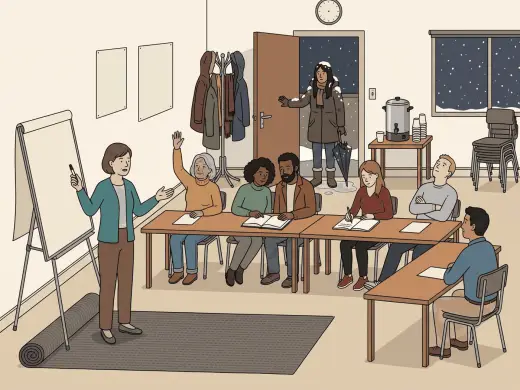
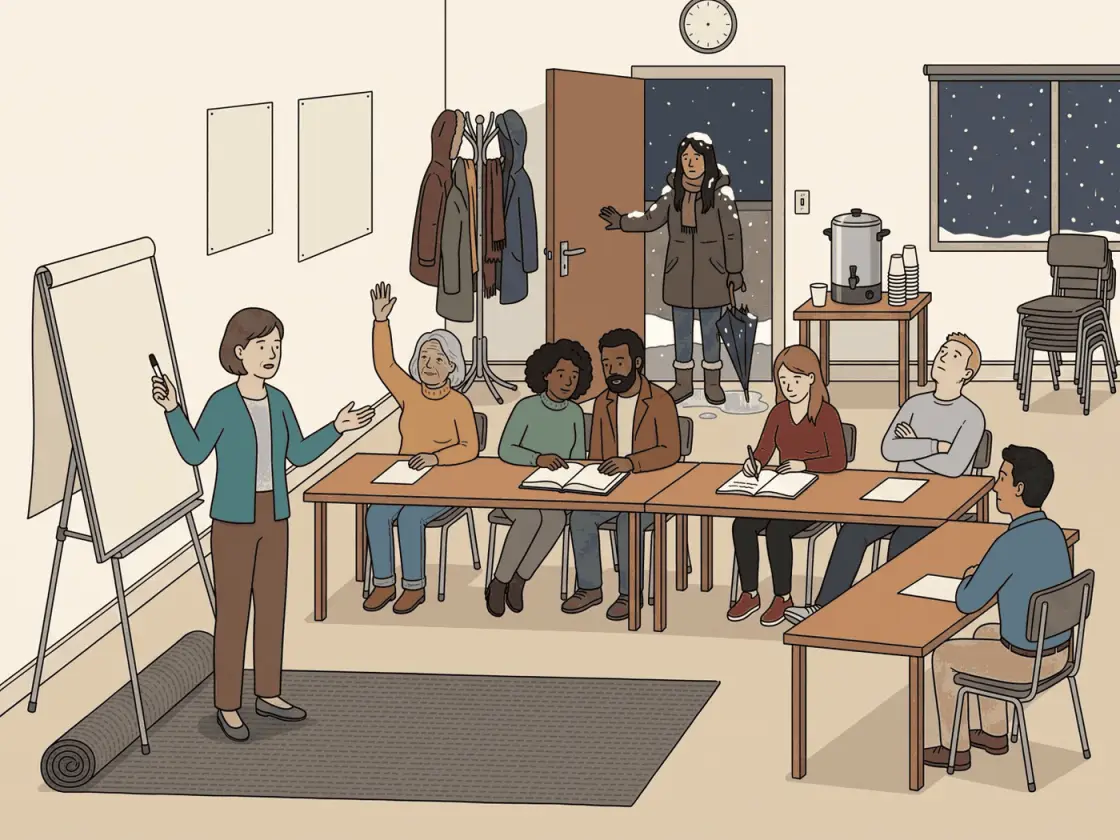
19 Describe what is happening in the picture below. The person you are speaking to cannot see it, so describe as much as you can.


20 Describe what is happening in the picture below. Give as many details as you can for a listener who cannot see it.
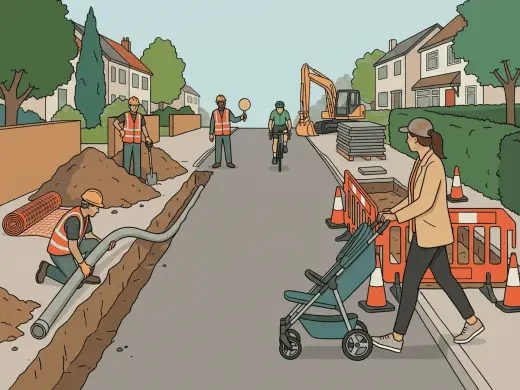
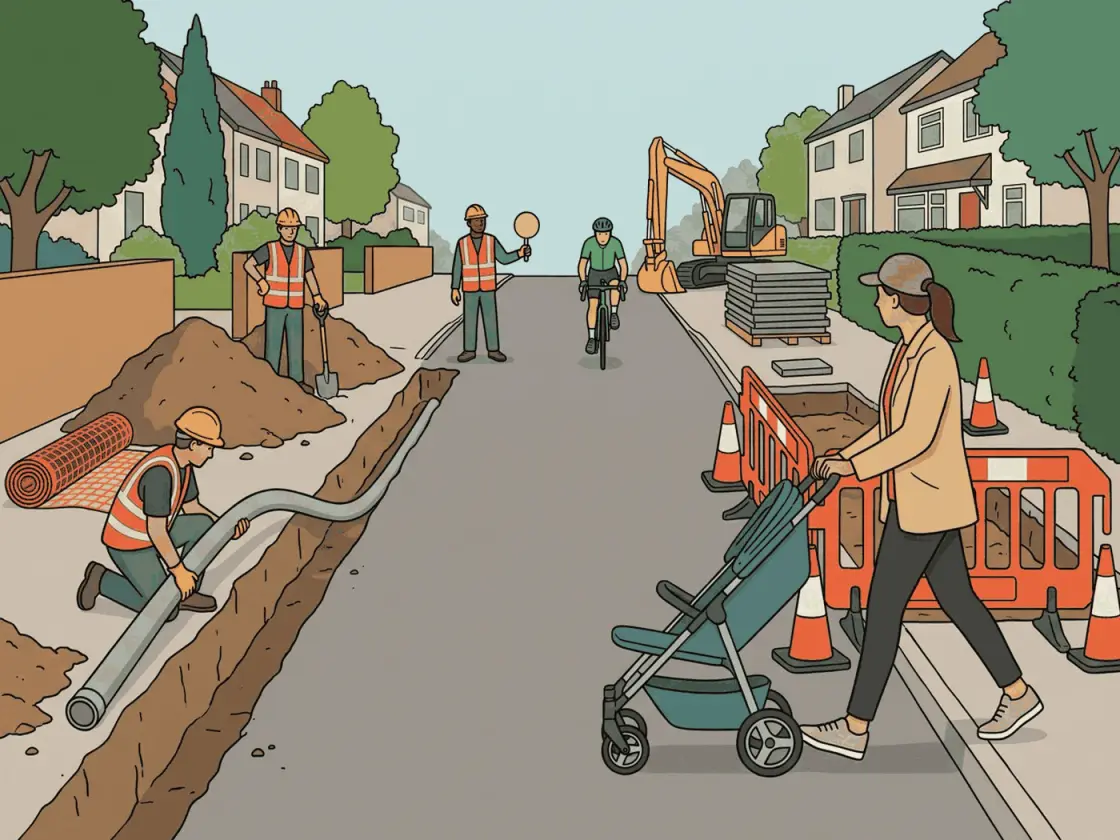
21 Describe what is happening in the picture below. The person you are speaking to cannot see it, so describe as much as you can.
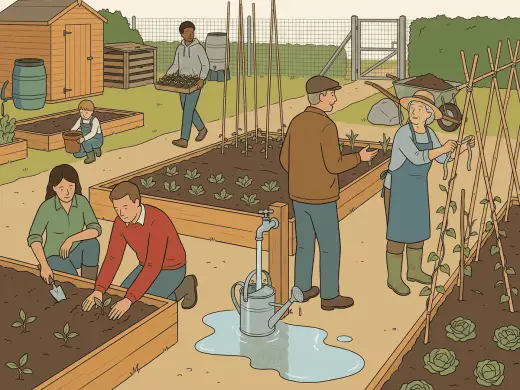
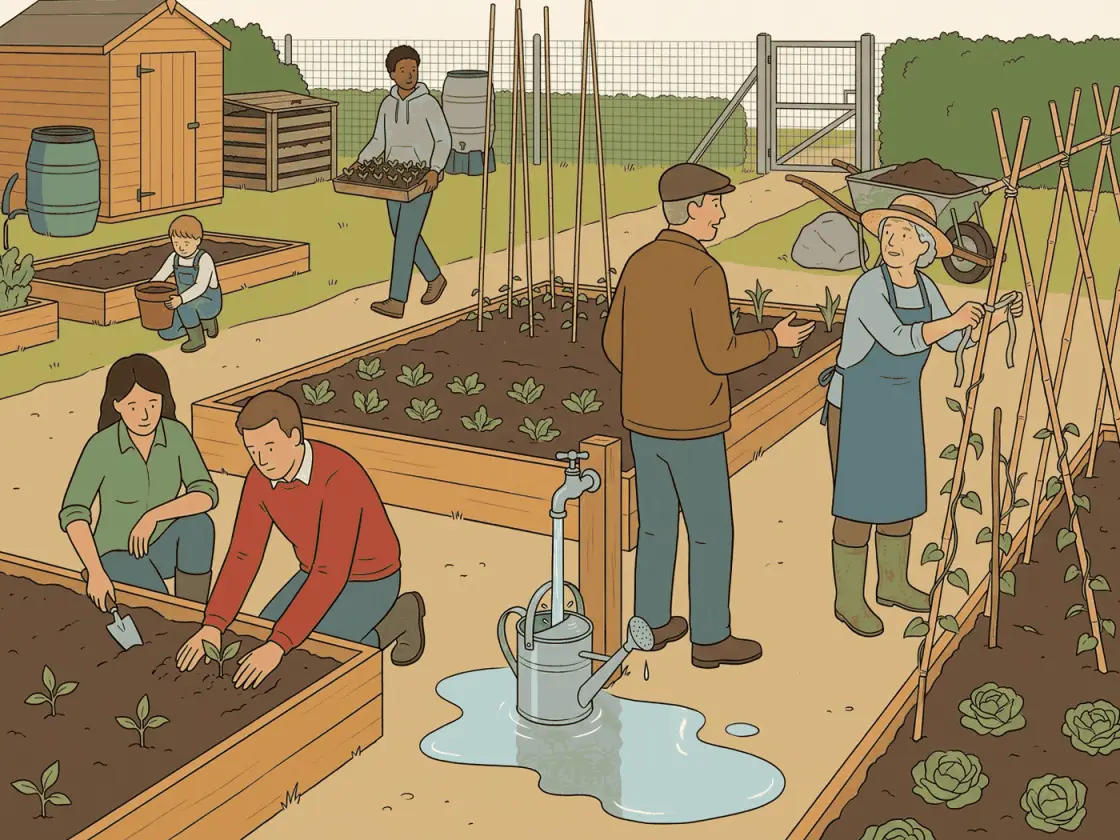
22 Describe what is happening in the picture below. Give as many details as you can for a listener who cannot see it.
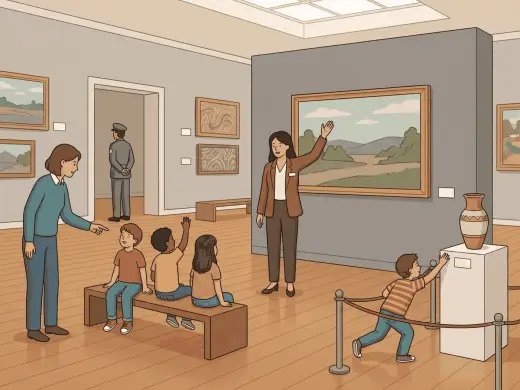
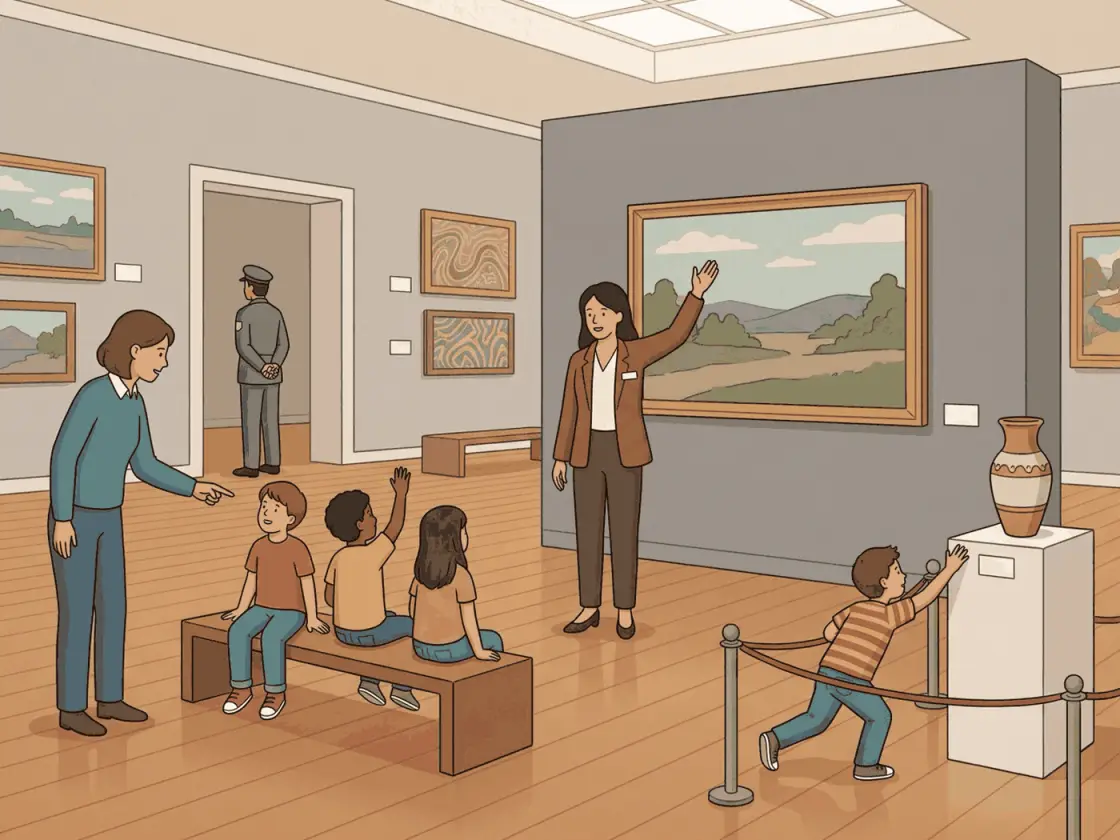
23 Describe what is happening in the picture below. The person you are speaking to cannot see it, so describe as much as you can.
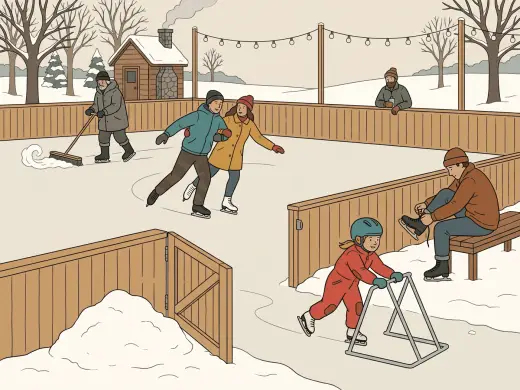
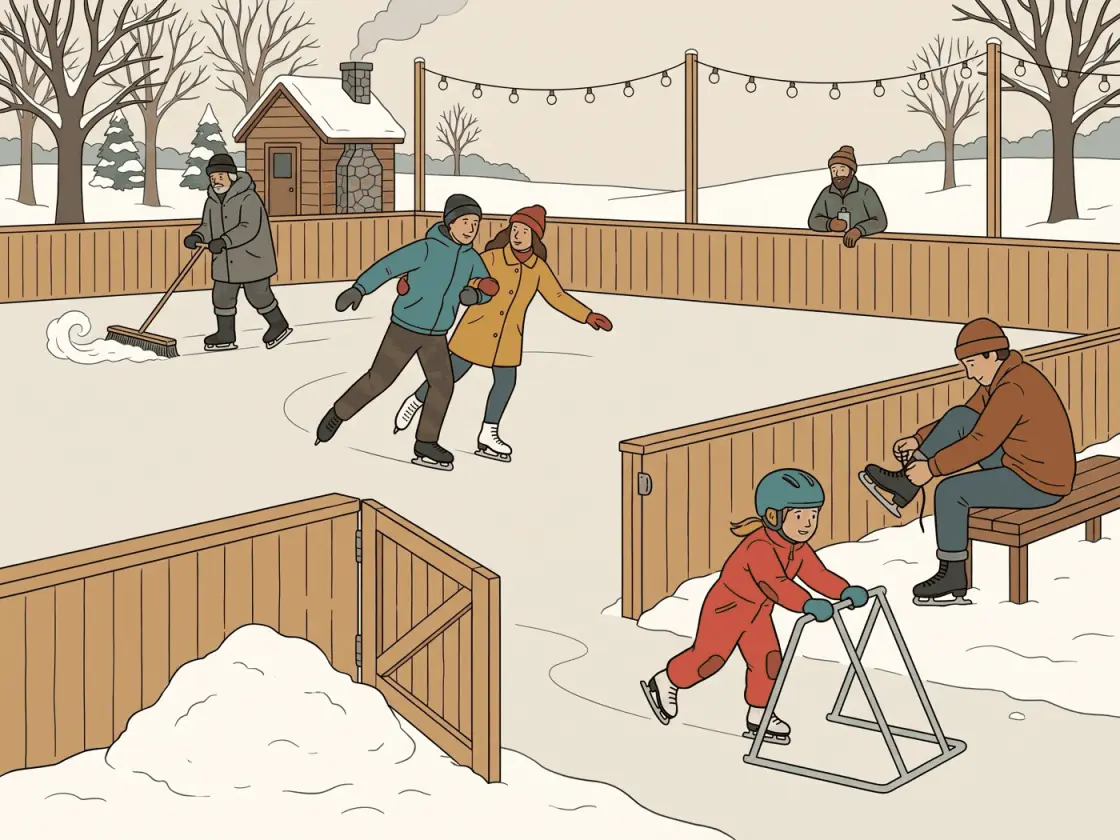
24 Describe what is happening in the picture below. Give as many details as you can for a listener who cannot see it.
The app’s estimate is an estimate, and it is weakest at the top of the scale. The measured accuracy, both halves of it, is on the home page.
Also on this section: Task 2 — Talking about a Personal Experience · Task 4 — Making Predictions
A prompt you have read is not a task you have answered. The app sets one, runs the real clock on it, and hands back a scored report in about five seconds.